Kirin Sense
$39
A permanent license for up to three computers.
KIRIN SENSE
Hear the mixes and masters your engineer sends, exactly as they were sent.
Reply, and measure audio files too.
KIRIN SENSE
When your engineer sends a mix or master from Kirin OS, Kirin Sense lets you hear it exactly as it was sent, judge it, and reply with notes at the playhead. When a new version arrives, compare it with the previous one at the same point. Bandmates’ songs can be practiced with the chord chart, and their setlists are here too. You can also drop an audio file to measure it.
Exactly as sent
Check that the file is the same as what was sent, then listen.
At streaming level
Turn it down to the level Spotify and Apple Music play it at.
Reply at the playhead
Send what you noticed back to your engineer, pinned to the moment.
01 / LISTEN
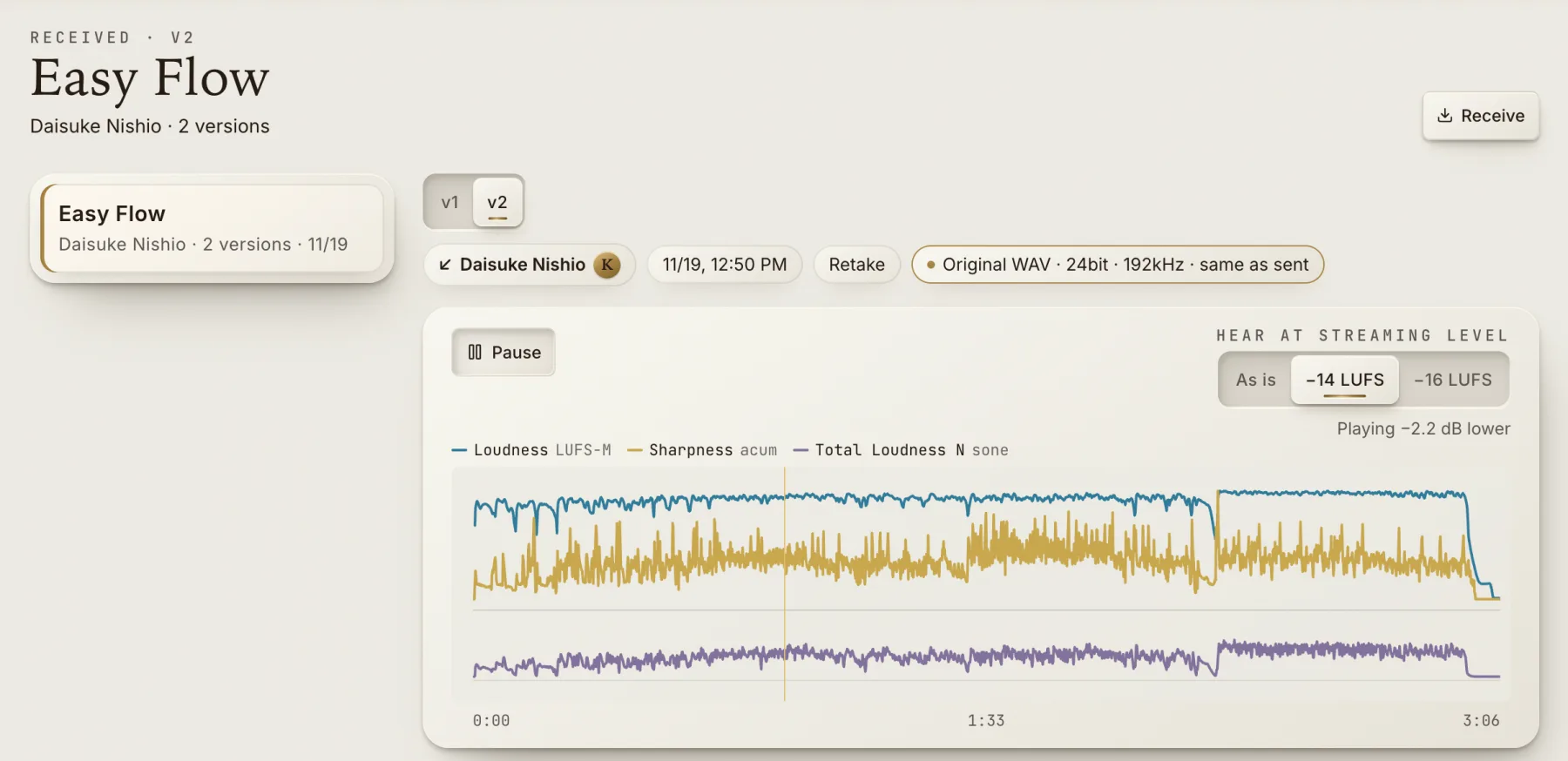
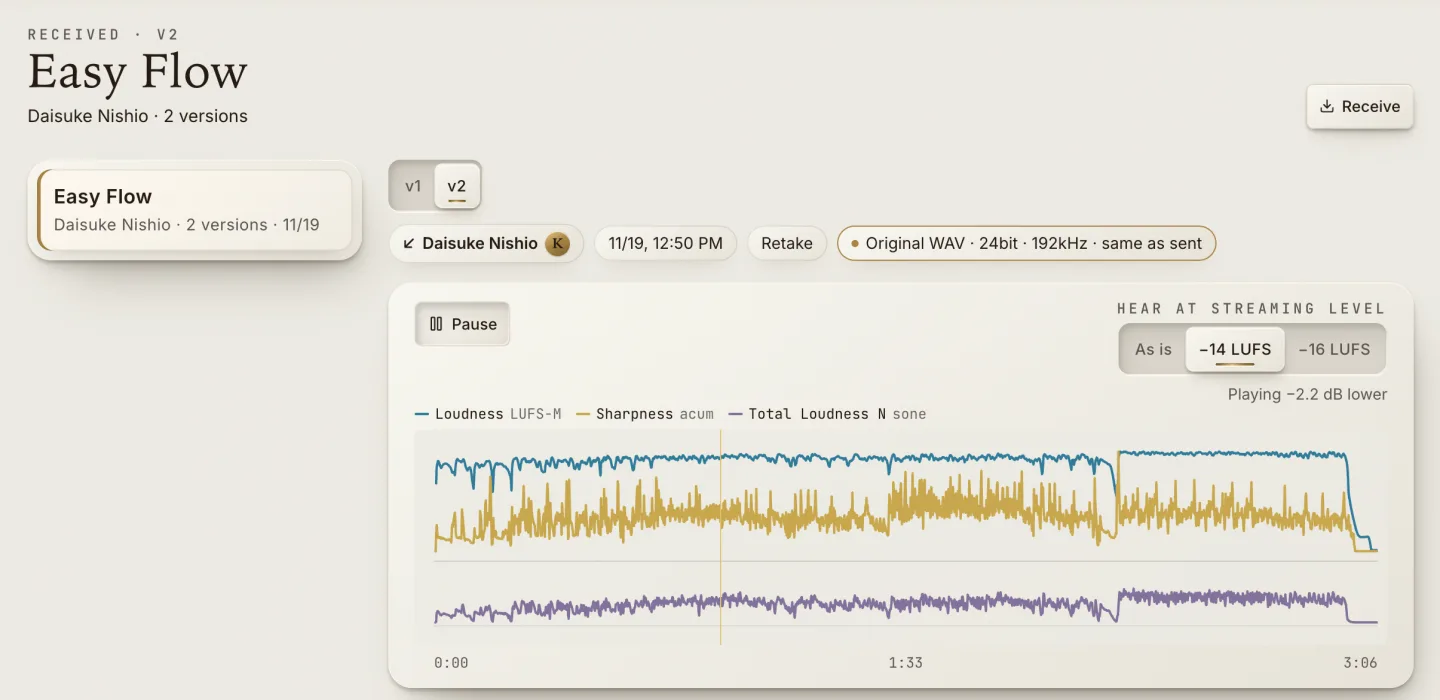
Open a .kirinsend or a Listening Room HTML file with Receive, and Kirin Sense shows whether you have the original audio or the preview MP3, and whether it is the same as what was sent. A file changed on the way is not received.
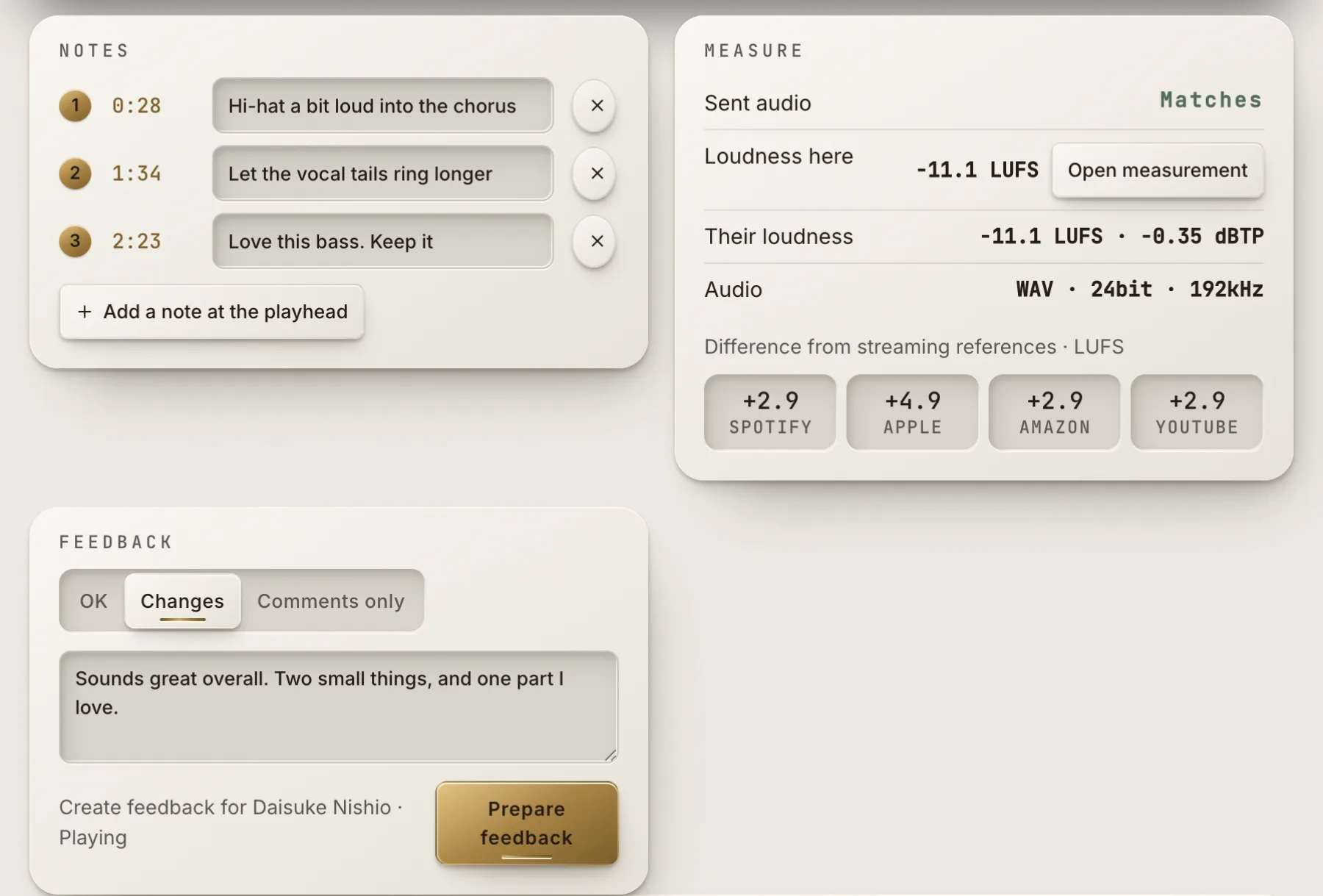
Compare the loudness the sender measured with the loudness measured on this computer. The kind of check the sender chose (rough, retake or final) and the reply date are shown too.
Choose −14 LUFS or −16 LUFS in “Hear at streaming level” to turn the song down to the level Spotify, Apple Music and other services play it at. The difference from each service’s reference is shown too.
02 / COMPARE
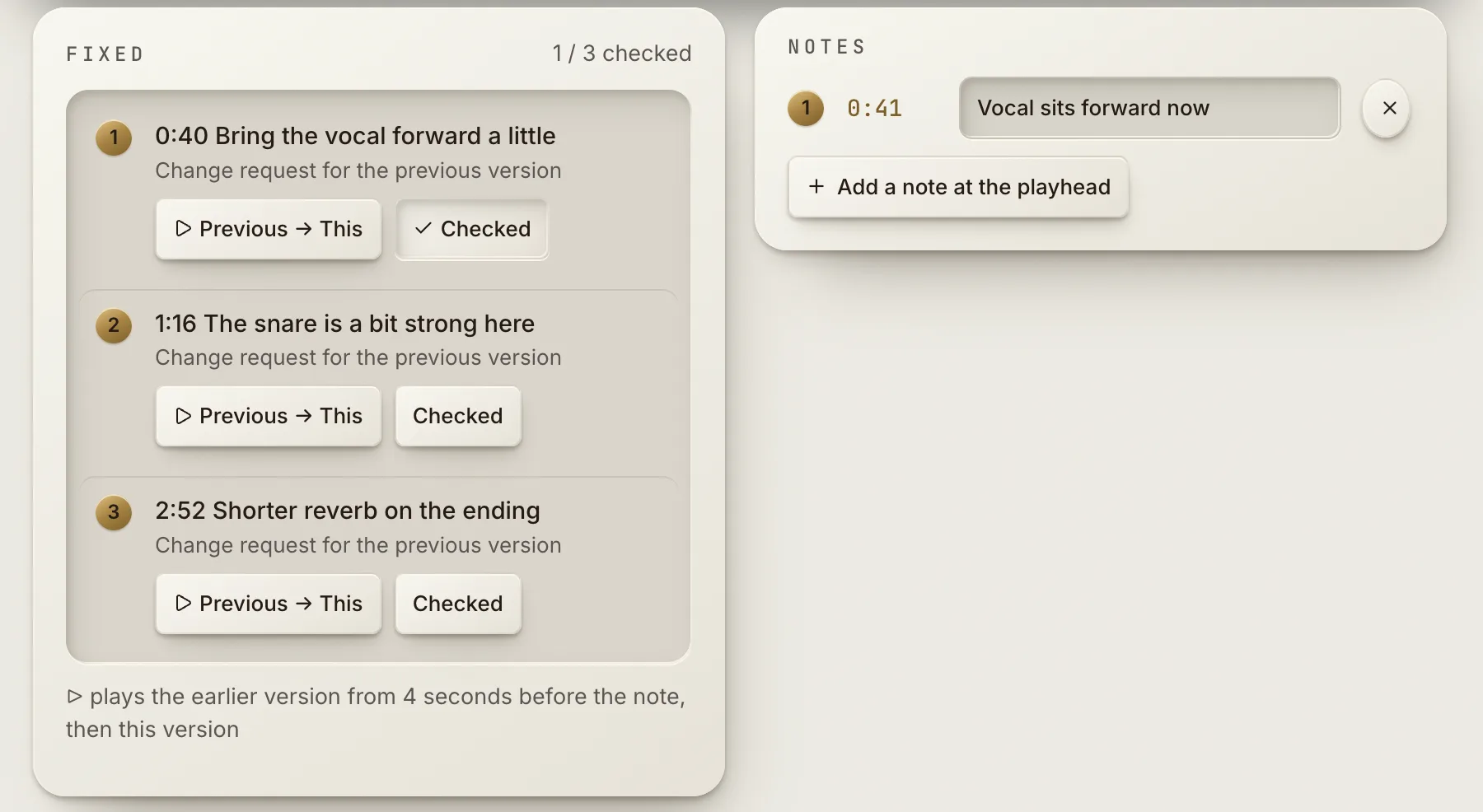
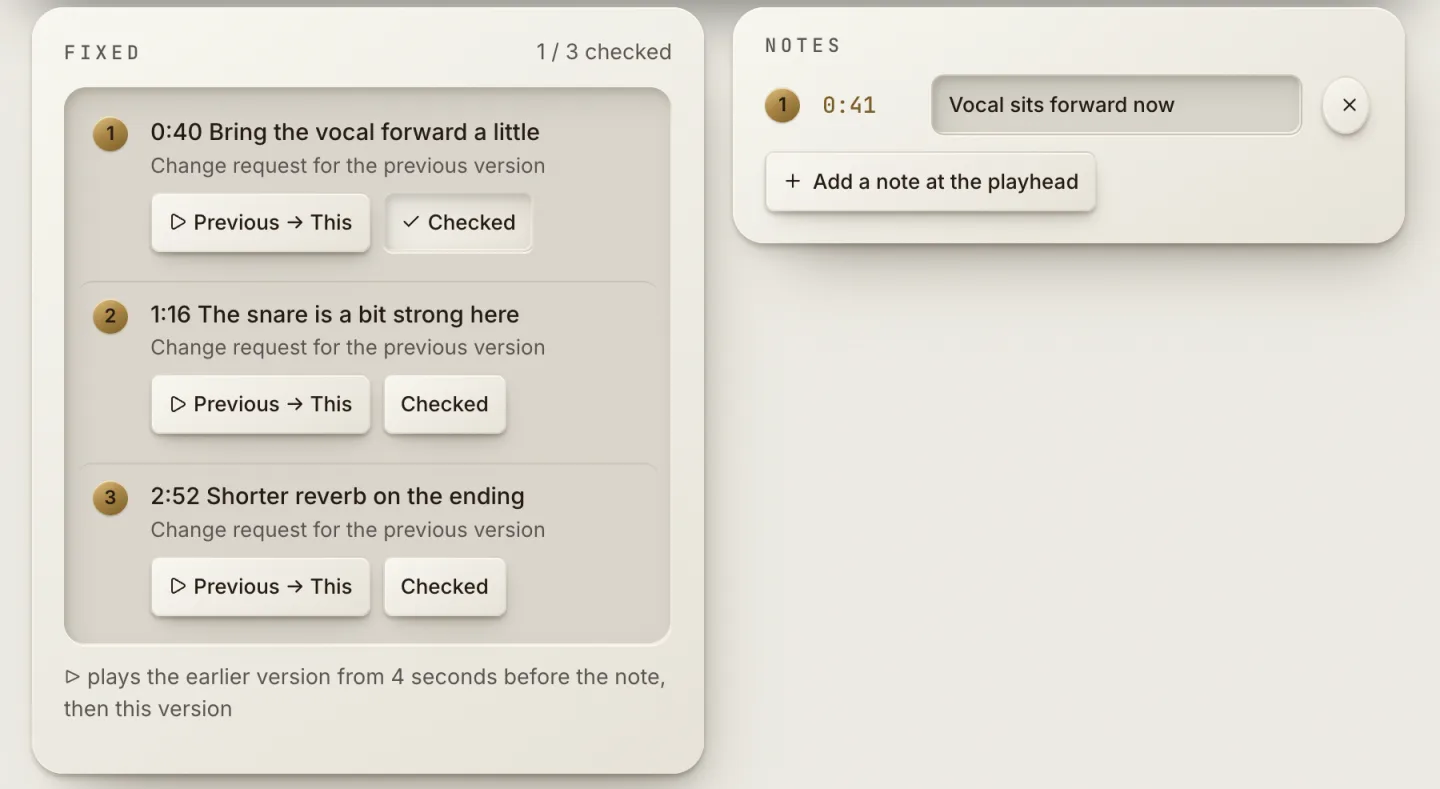
When a new version arrives, switch between “This version” and “Previous version” without losing your place. Turn on “Match loudness” to compare them without the difference in level.
The change notes you sent for the previous version appear as fixes. Press ▷ to hear the previous version from 4 seconds before the note, then the new version. When it is fixed, mark it “Checked”.
03 / REPLY
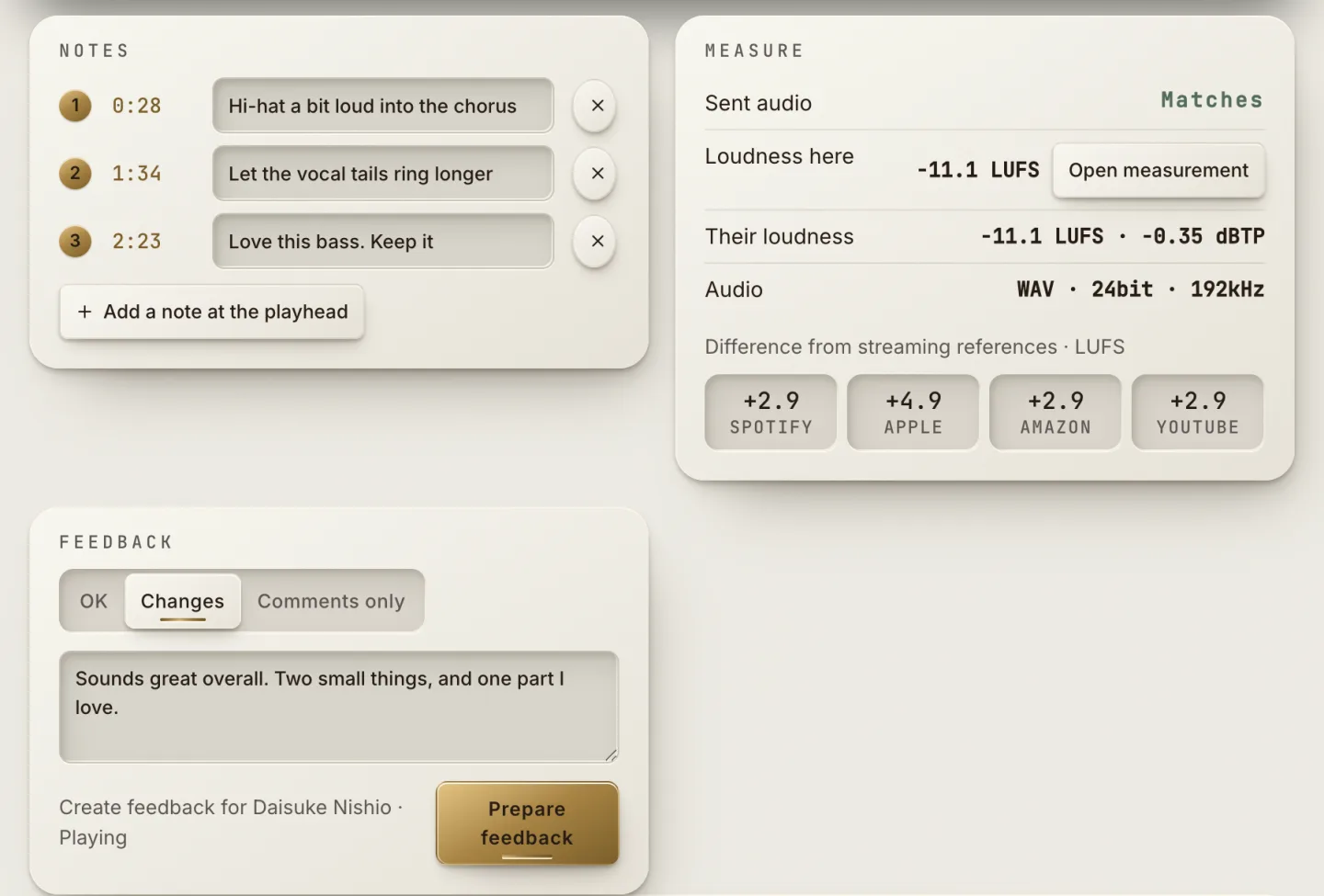
Add what you noticed as notes at the playhead. Reply with OK, Changes or “Comments only”, and send it back as a file with your notes. In the sender’s Kirin OS, your reply lands in the song’s notes.
If only the preview MP3 arrived, use “Request original audio” to ask for the original.
The versions you received and the replies you sent stay in the history.
04 / MEASURE
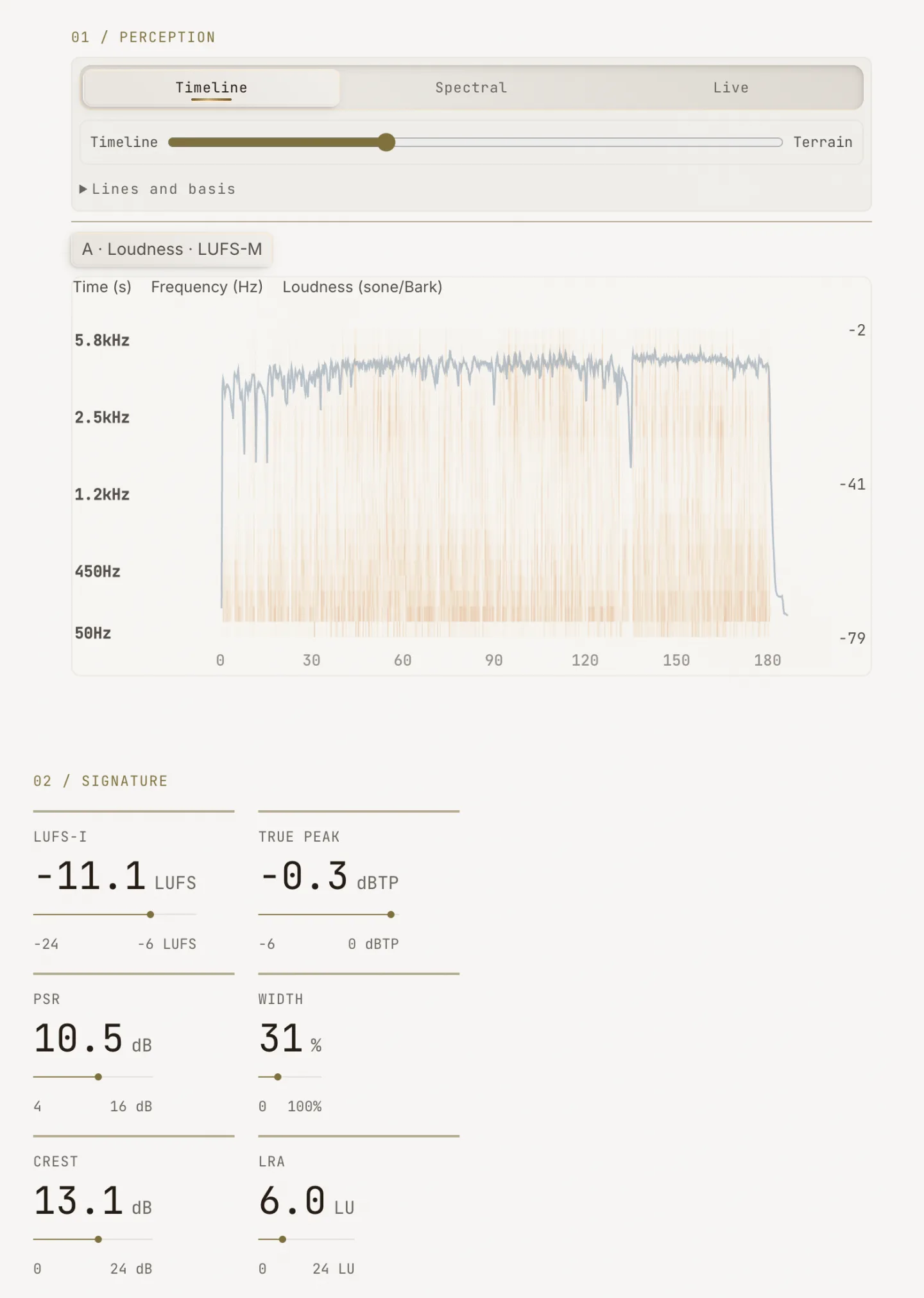
Drop an audio file to measure LUFS, True Peak and more. Along with WAV and AIFF, MP3, M4A and AAC (AAC-LC) can be measured. Export the result when you need it.
A song you received can be measured from “Measure in MEASURE”.
MASKING shows where two audio files overlap in time and frequency, and lets you hear either one or both.
05 / PRACTICE
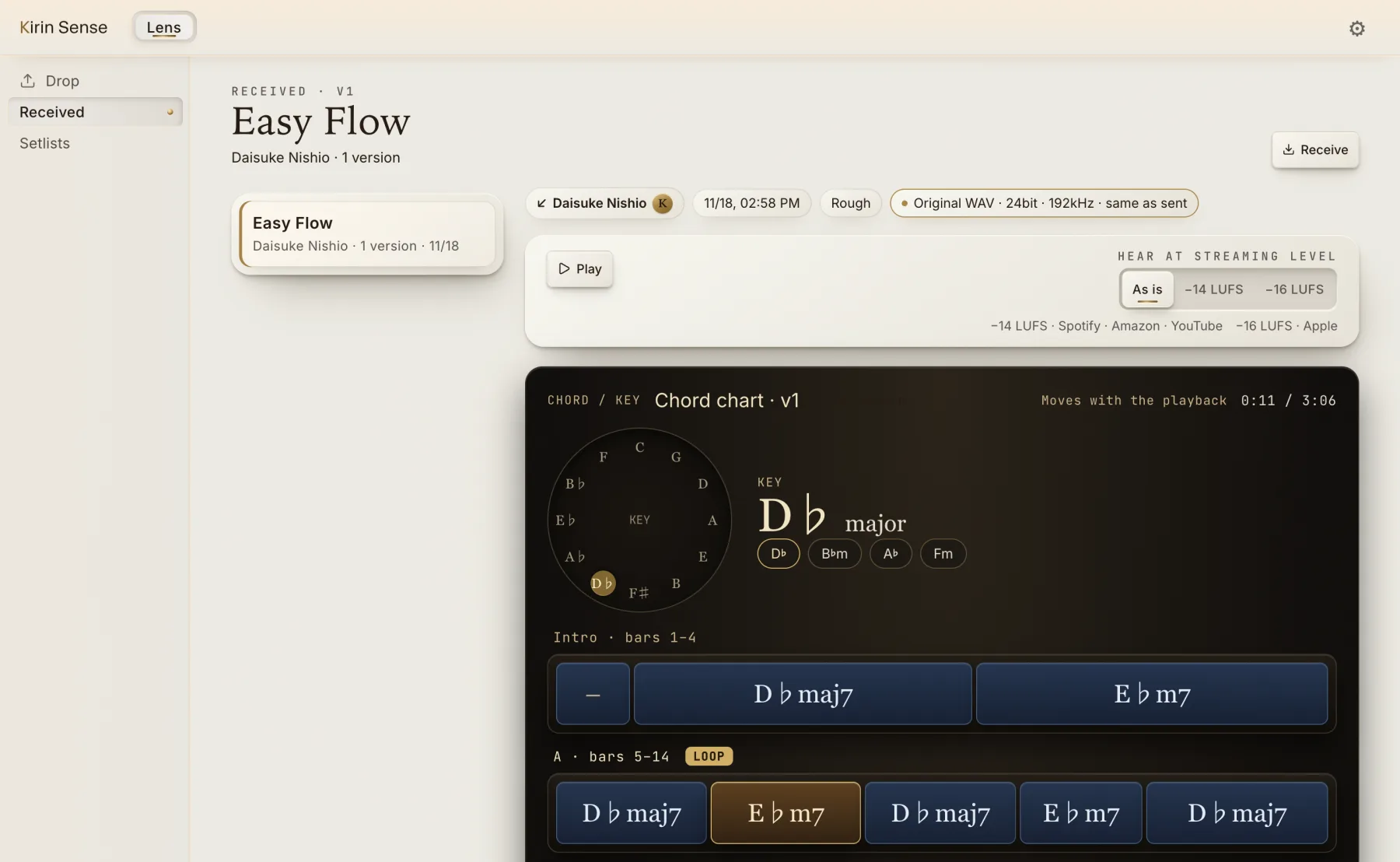
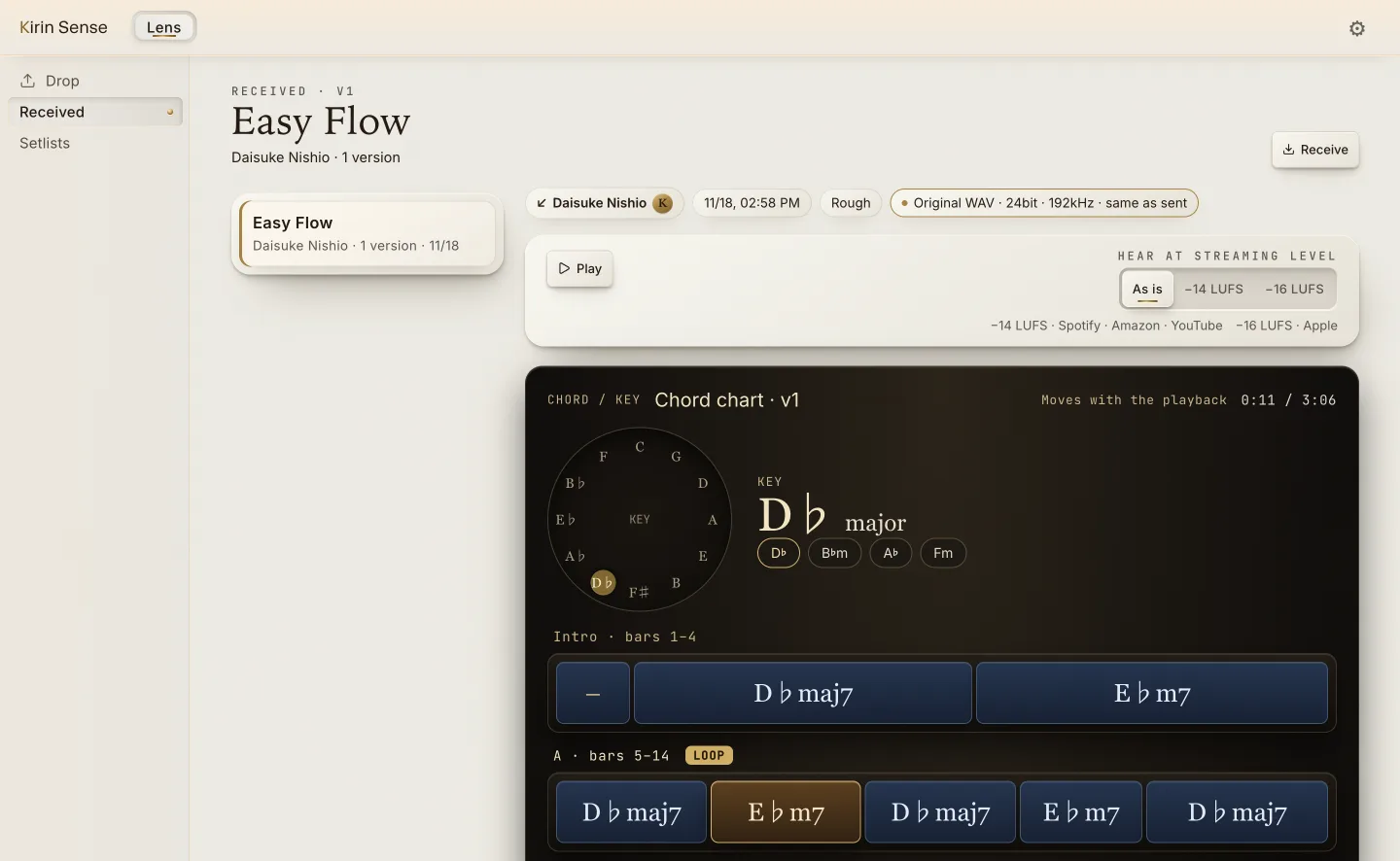
If a song a bandmate sent from Kirin OS came with a chord chart, the chart follows playback.
When the original audio arrived as WAV, AIFF or FLAC, loop a section or a run of bars and practice at 0.5 to 1.5 times the speed. The pitch stays the same when you change the speed.
06 / SETLISTS
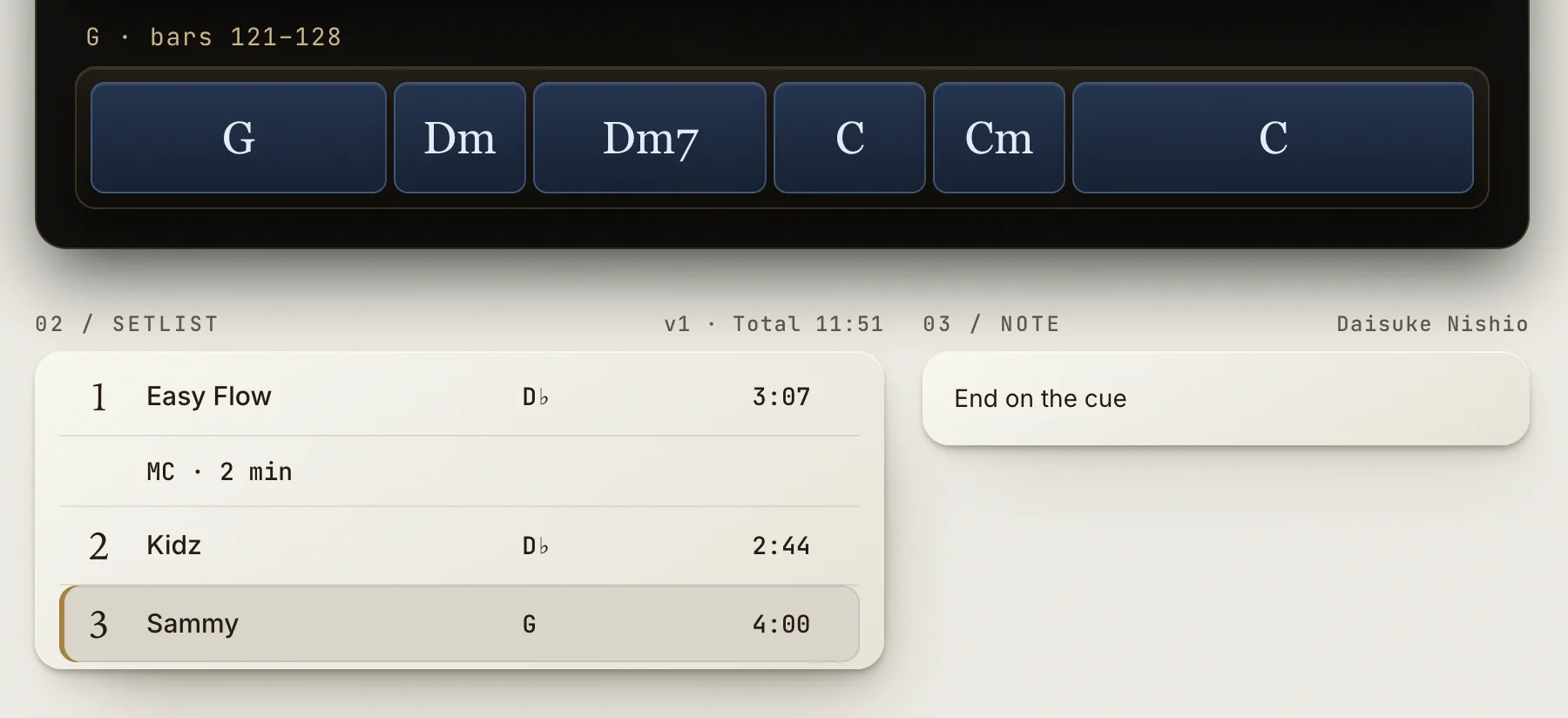
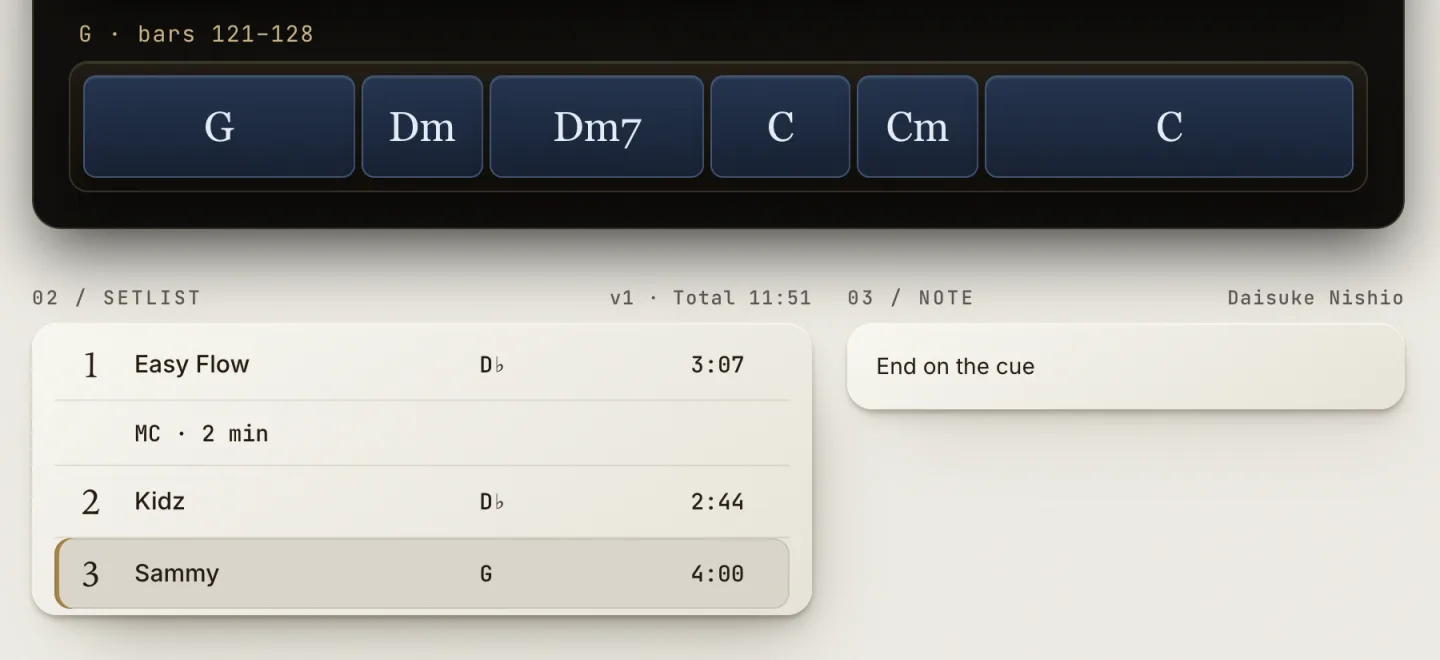
Setlists your bandmates make in STAGE in Kirin OS arrive under Setlists on the left through a shared folder. A setlist HTML file sent over LINE or a similar app goes in too when you drop it on Received.
Check the show date, venue and start time, along with the song order, keys, lengths and MC breaks. Select a song to see its chord chart and note. When a setlist is updated, you see the new version, with how many songs were reordered, added or removed since the last one.
Price / Download
$39
A permanent license for up to three computers.
$258
Kirin Sense owners can upgrade to Kirin OS for this price. Kirin OS includes everything Kirin Sense does. Songs sent to you go to Projects, and setlists go to STAGE.
About the upgradeRuns on macOS 13 or later (Apple Silicon / Intel) and Windows 10 / 11 (x64).